Switching to grayscale is one of the most effective ways to reduce phone screen time. Without color, apps become less visually stimulating—Instagram, TikTok, and YouTube lose a lot of their pull. Many people use it as a digital detox tool, especially at night. If you’re wondering how to change phone to grayscale:
-
On iPhone: Go to Settings > Accessibility > Display & Text Size > Color Filters, toggle on Color Filters, then select Grayscale.
-
On Android: Go to Settings > Digital Wellbeing > Bedtime Mode (or Settings > Accessibility > Color Correction) and enable grayscale. Both can be done in under a minute.
Step-by-Step: iPhone Grayscale
1. Open the Settings app.
2. Tap Accessibility.
3. Tap Display & Text Size.
4. Tap Color Filters and toggle it ON.
5. Select Grayscale from the options.
Your screen will turn black and white immediately. To quickly toggle it on/off without going back into settings, set up an Accessibility Shortcut: go to Accessibility > Accessibility Shortcut > Color Filters. Now triple-clicking the side button turns grayscale on/off.
Step-by-Step: Android Grayscale
Android varies by manufacturer, but here are the most common paths:
| Android Brand | Path to Grayscale |
| Samsung (One UI) | Settings > Accessibility > Visibility Enhancements > Color Adjustment > Grayscale |
| Pixel (Stock Android) | Settings > Digital Wellbeing > Bedtime Mode (enables grayscale at set times) |
| OnePlus / Oppo | Settings > Accessibility > Color Vision > Grayscale |
| Xiaomi / MIUI | Settings > Special Features > Reading Mode, or Accessibility > Color Correction |
| General Android | Settings > Accessibility > Color Correction > Grayscale |
How to Schedule Grayscale (iPhone)
iPhone doesn’t have a native grayscale schedule, but you can use Shortcuts Automation: open the Shortcuts app, tap Automation, create a new automation triggered by Time of Day, and add the ‘Set Color Filter’ action set to Grayscale. Create a second automation to turn it off in the morning.
How to Schedule Grayscale (Android)
On Pixel and some Samsung devices, Bedtime Mode automatically enables grayscale at a set time. Go to Digital Wellbeing > Bedtime Mode and set your desired schedule. It turns gray at bedtime and returns to color in the morning.
Does Grayscale Actually Help With Screen Time?
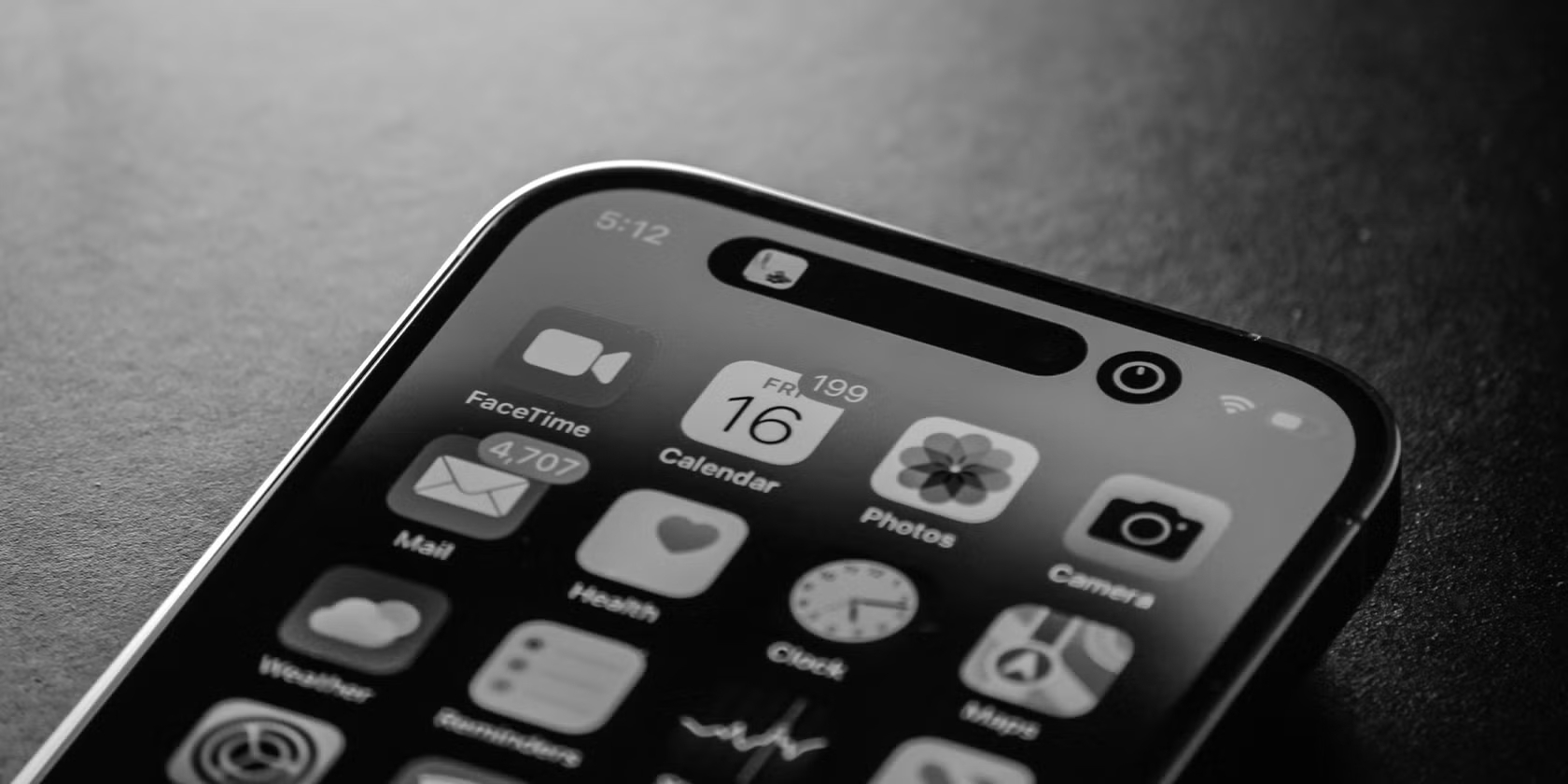
Research suggests yes – removing color makes apps less rewarding to look at, which reduces mindless scrolling. Designers intentionally use vibrant colors, notification badges, and visual cues to keep users engaged. Without those color triggers, apps feel noticeably more boring, which is the whole point.
- Most people report checking their phone less often within the first few days
- Social media and video apps show the biggest drop in time spent
- Email and messaging apps are largely unaffected – they were never that visually exciting anyway
Final Thoughts
Changing your phone to grayscale takes less than 60 seconds and can meaningfully reduce compulsive phone checking. It’s not a permanent fix for phone addiction, but it’s a low-effort first step that many people find surprisingly effective. Set up the triple-click shortcut on iPhone so you can flip it on at night without fuss.